
3AI Desktop: Site Weaver Edition helps you build websites from AI conversations. It’s part of Buildingabot’s suite of AI-powered WordPress plugins.
What is 3AI Desktop?
3AI Desktop is an AI-powered desktop environment inside WordPress. It transforms your chats into structured web pages you can browse, edit and own.
How do I create pages?
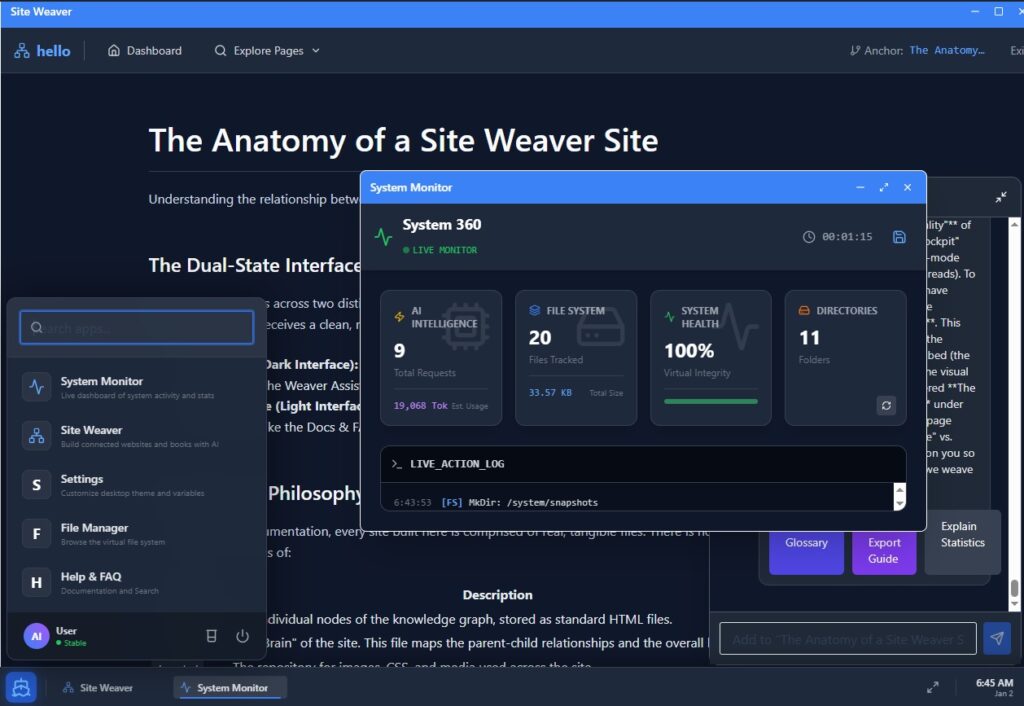
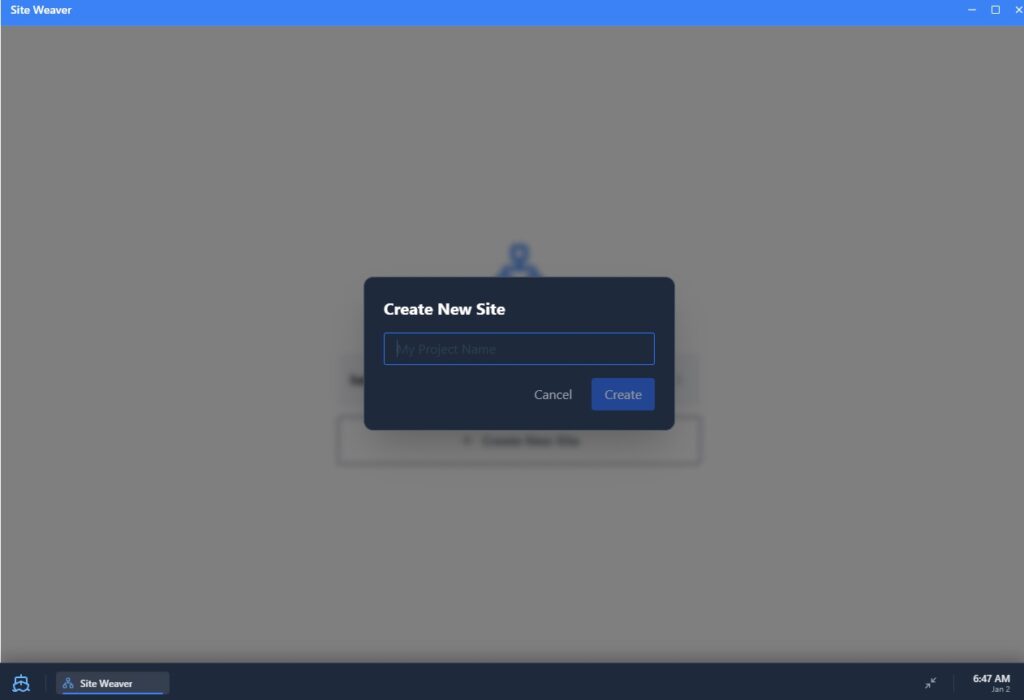
Use the Site Weaver assistant to specify the page you want. Pick a page in Explore Pages, ask the AI for one page at a time (e.g., “Add a pricing page”), then review and edit the output.
How do I edit content?
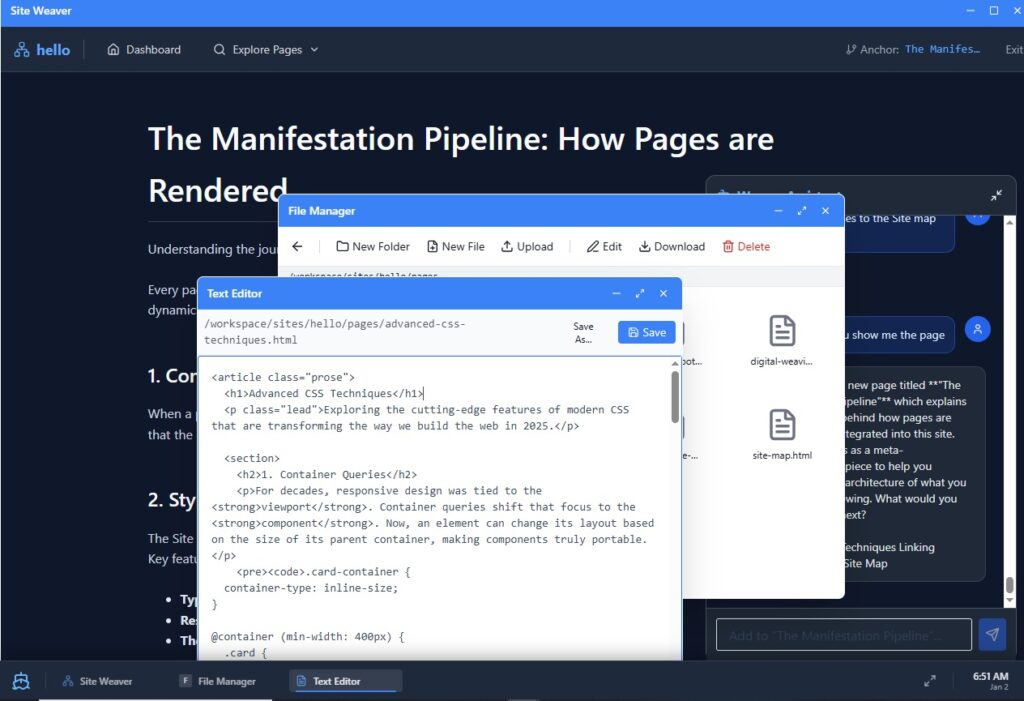
Open the File Manager app to browse your site’s folder. Each page is a simple HTML file. Double-click a file to open it in the Text Editor, make changes and save.
Where are my sites stored?
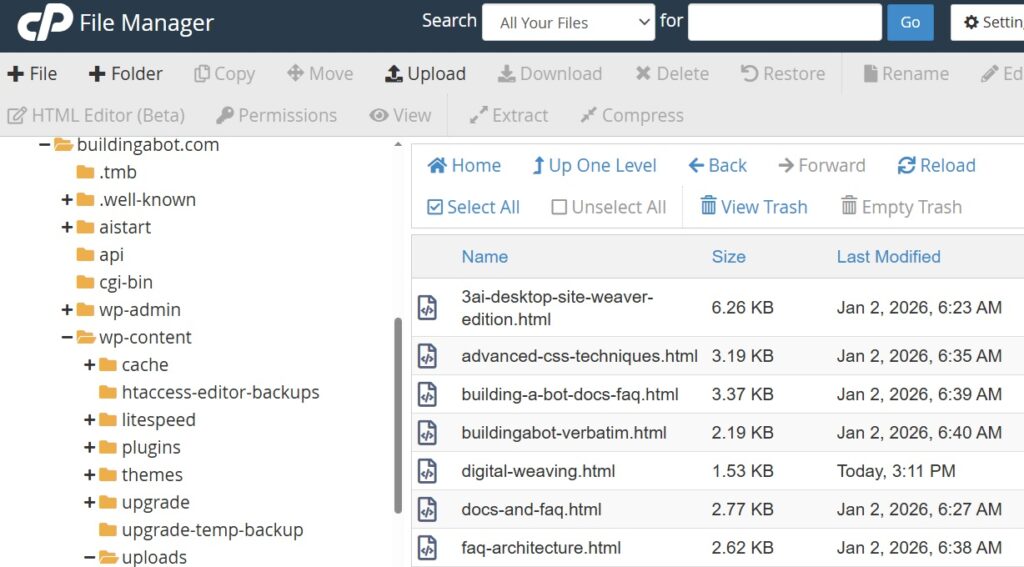
Sites live in your WordPress workspace under /workspace/sites. Each site is a folder containing .html pages and an index.json file that maps the structure.
Can I export my site?
Yes! Because your site is made of real files, you can download the entire folder and host it anywhere — no vendor lock-in.
Need help?
Visit our contact page to ask questions, request support or share feedback. We’re here to help you make the most of 3AI Desktop.
(Extra tips)
Fast wins (most common fixes):
- Think “one page at a time.” Ask for one page (or one section) per prompt to avoid bloated output and keep navigation clean.
- Use the Anchor on purpose. Before prompting, click the page you want to build under (Explore Pages → select page). That anchor becomes the “parent” context.
- If something looks “missing,” check the files. Your pages are real
.htmlfiles and the structure is controlled byindex.json. buildingabot.com - Edits happen in File Manager + Text Editor. If you want a quick change, open the file and edit the HTML directly—no need to re-generate. buildingabot.com
Uploading pages (Import your own HTML)
You can upload your own pages into a site folder and have them appear in Site Weaver.
1) Upload the file
- Open File Manager
- Go to:
/workspace/sites/buildingabot.com/pages/ - Upload your file (example:
my-page.html)
2) Use the right format
- Pages should be HTML fragments (not full
documents). - Recommended wrapper:
...
3) Register it in index.json
- In the same site folder, open
index.jsonbuildingabot.com - Add an entry like:
- id:
my-page(match your internal page id style) - title: “My Page”
- parentId: where it should live (ex:
home) - summary: short description
- tags: optional
- id:
4) Refresh Site Weaver
- Go back to Site Weaver and refresh/reopen the app so the page list re-syncs.
Learn, Build, Master 3AI
Complete documentation and FAQs to help you get the most out of 3AI Desktop. From setup to advanced workflows, find answers fast.